How to Automatically Prepare PDF Files for Print Production
September 04, 2026
Before printing, it’s generally hard to get a PDF file ready for print. You have to open the file, check the dimensions, make sure the colors are right, add bleed, confirm the cut path, and send it to production. In reality, prepress can be one of the most time-consuming parts of the workflow.
The PDF file may look great on your computer screen and still contain issues that will be obvious when they reach the printer or cutting table. For instance, if there is a missing bleed, it can leave white edges that you will try hard to get rid of. And sometimes an incorrectly named spot color can prevent a cut path from being recognized.
We can also mention other issues like missing font, unsuitable color space, or damaged contour. They can all force an operator to stop production and go back to the original design to check for errors.
If you check manually, you are more prone to encounter small errors that can escalate with time and become very expensive delays.
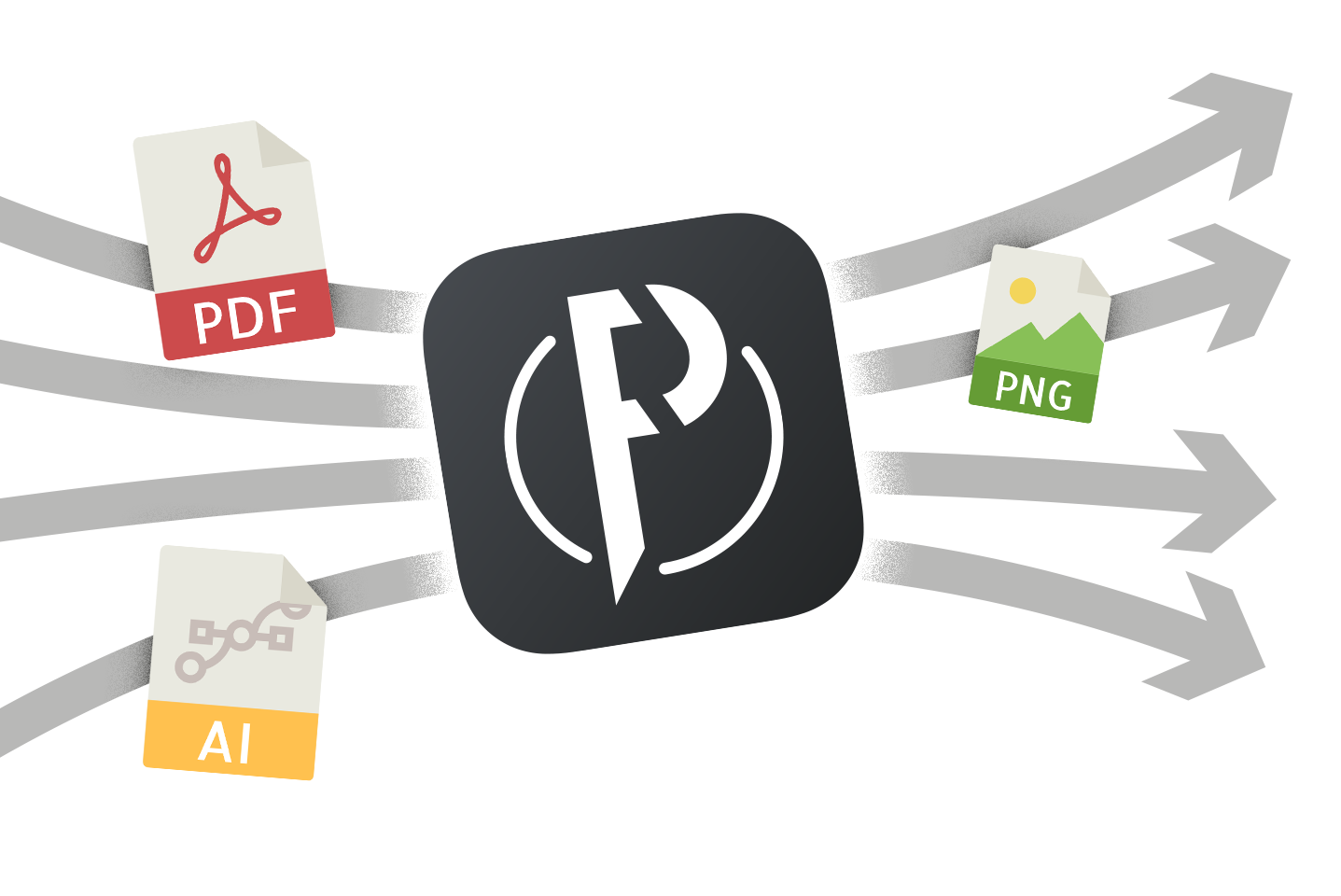
When using PrimeCenter, print professionals can create automated prepress workflows (recipes) that check, correct, and prepare files before you even start production. You can read about how PrimeCenter 5 handles file preparation here.
Instead of spending hours opening every PDF individually and repeating the same processes, you can build recipes that apply predefined checks and fixes automatically. It’s also possible to automate tasks like bleed, cut marks, nesting, and file generation.
Why PDF preparation matters in print production
A PDF is not necessarily a print-ready file simply because it is in a PDF format. Files arrive from different designers, agencies, customers, and workflows. They may have been created using different software, different color settings, and different production specifications.
It also happens that a file contains the right colors but no usable cut contour. Another case might be when dimensions do not match the intended finished size.
Checking these details manually for every job takes time, especially when a print department handles dozens or hundreds of files.
Automation changes everything
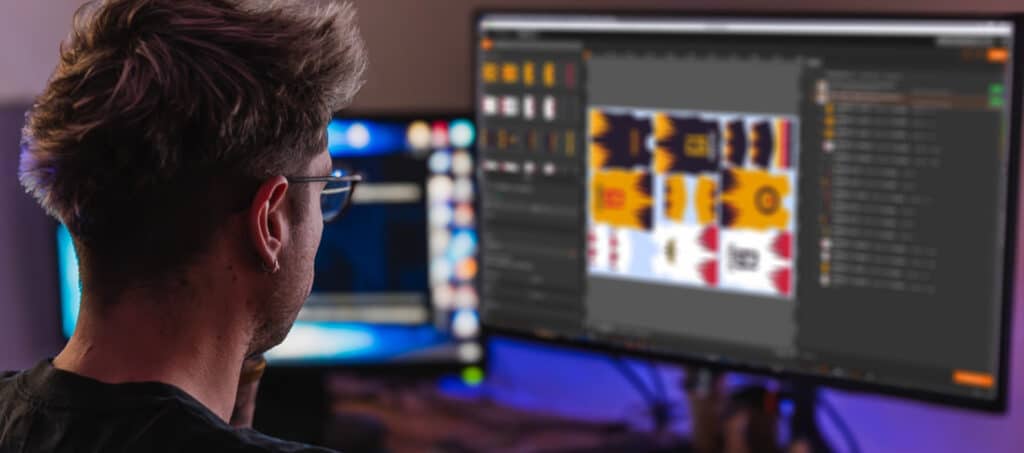
You can’t keep relying on an operator to memorize every requirement. Instead, you can start thinking about prepress workflow and how it helps apply consistent rules to incoming files.
PrimeCenter is designed specifically for this stage of the production process. Its check/fix functionality can detect and correct PDF issues, and these tools can be applied manually or automatically as part of a recipe.
That means file preparation can become part of a repeatable workflow rather than a series of individual manual tasks.
What is PDF Preflight?
PDF preflight is the process of checking a PDF before production to identify potential problems that could affect printing or cutting. You can read more about this topic here.
Think of it as a quality-control step between artwork creation and production.
A preflight process can check things such as:
- Color spaces
- Fonts
- Resolution
- Page dimensions
- Spot colors
- Cut contours
- Bleed
- Other print-specific requirements
You will have to find problems before they become production problems. PrimeCenter includes ready-to-use preflight profiles and check/fix tools that can be incorporated into automated recipes.
Instead of waiting for an issue to appear during printing, operators can address it earlier in the workflow. And of course, this can have a significant impact on production efficiency.
Read more about file preparation and how File Editor in PrimeCenter 5 can help.
How do I check PDFs automatically?
The traditional processing of PDF files is straightforward. You open a file, inspect it, correct anything that looks wrong, save it, and move on to the next file. But at the end of the day, this process does not scale particularly well, and it doesn’t help your business. If you have to check 50 files, it means that you will repeat the same steps for all 50 files. The problem is that this process does not scale particularly well.
If 50 files arrive in an afternoon, manually checking each one means repeating the same steps 50 times. With PrimeCenter, the checks can become part of a recipe-based workflow.
A recipe can define how incoming files should be processed, including which checks and fixes should be applied. Files can then be imported manually or automatically through defined input folders, depending on the workflow configuration. In this way, you get a more consistent process:
Instead of asking an operator to remember every step, the workflow handles the repetitive parts according to settings that are already defined. For larger production environments, PrimeCenter can go further. Its automated workflows can retrieve files from folders, apply recipes, generate layouts, and produce print and cut files automatically.
So, the advantage you get is not only related to speed. You will experience consistency as well. You can apply the same rules to every incoming file, reducing the risk of human oversight and making the prepress process easier to standardize across a production team.
How do I detect missing bleed?
Bleed is a very small detail but it can have a very visible effect that you can’t just ignore. When a design extends to the edge of a finished print, the image needs to extend beyond the final cutting boundary. So , without a sufficient bleed, you can get an unwanted white line around the finished piece. Without sufficient bleed, even a small cutting variation can expose the substrate and create an unwanted white line around the finished piece.
This is particularly important for stickers, labels, signage, decals, and other printed products that are cut to shape. The challenge is that bleed requirements can vary according to the job. A rectangular poster may need a straightforward extension beyond the page boundary. A shaped sticker may require bleed that follows the cut contour.
PrimeCenter provides tools for adding bleed to files, including options based on the shape or canvas. Bleed can also be applied automatically when files are imported or when a recipe is executed. This makes bleed preparation much easier to incorporate into a standardized workflow.
Instead of relying on every designer or operator to manually extend artwork, the production workflow can apply the appropriate bleed settings automatically.
How do I fix cut path errors?
Cut paths are essential when printed graphics need to be contour-cut. A cutting system needs a clear definition of where the blade should travel. If the contour is missing, incorrectly named, open, filled instead of stroked, or otherwise incompatible with the production workflow, the file may not behave as expected.
PrimeCenter automatically detects cut contours according to the contour names configured in its cut contours list. For reliable detection, Caldera recommends that contours be closed, created as strokes rather than fills, and use an appropriate spot color.
But what happens when a customer sends a file without a proper cut contour?
This is where automated preparation becomes particularly useful. PrimeCenter can generate cut contours directly from PDF box information or by analyzing the content of the file. This means operators do not necessarily have to return to the original design application just to create a missing cutting path.
A missing cut path no longer automatically means:
Instead, depending on the job and required contour, PrimeCenter can help create the necessary production information within the prepress workflow.
How do I validate spot colors?
Spot colors are another important consideration in print and finishing workflows. They can be used for special inks, white ink, varnish, cut contours, registration elements, and other production-specific information.
The problem occurs when a spot color is missing, incorrectly named, or used differently from what the production workflow expects.
A color that looks correct visually may still carry the wrong technical information. This is why spot-color validation is an important part of automated PDF preparation.
PrimeCenter includes tools for creating, converting, and modifying spot colors. It can also create spot colors from page content and provides options for editing spot color names in specific workflows.
For example, if a production process expects a particular spot color name for a cutting path, ensuring that the file uses the correct name can make the difference between a contour being recognized correctly and being ignored.
The same principle applies to special ink workflows.
The goal is to make sure the information contained in the PDF corresponds with what the production system expects.
From PDF Preflight to production automation
The real advantage of automated PDF preparation becomes clearer when these functions are combined.
Imagine receiving a batch of customer files. Instead of manually checking each document, you can create a PrimeCenter recipe that applies the required production rules.
The workflow can:
- Import the files
- Run predefined checks
- Correct common PDF issues
- Add the required bleed
- Identify or generate cut contours
- Manage spot colors
- Prepare print and cut information
- Create production-ready output
PrimeCenter can also combine file preparation with other production tasks such as nesting, cut marks, and output generation.
This is where prepress automation moves beyond simple PDF checking. It becomes a complete preparation layer between the customer file and the production system.
Why automating PDF preparation saves more than time
Time is probably the most obvious benefit. But it is not the only one. Manual prepress work creates opportunities for inconsistency. One operator may detect an issue that another misses. One file may receive a full inspection while another receives only a quick glance because production is busy. Automation introduces you to repeatability. The same predefined workflow can be applied again and again.
That can help reduce:
- Repeated manual checks
- Production interruptions
- Avoidable reprints
- Incorrect cut paths
- Missing bleed
- Color-related file issues
- Unnecessary file editing
- Communication between prepress and production
There is also a less visible benefit which is: operator focus. When repetitive PDF preparation is automated, skilled employees can spend more time on tasks that actually require their judgment. Automation handles the predictable work, and people handle the decisions.
Building a more reliable print workflow with PrimeCenter
The strongest prepress workflow is not necessarily the one with the most manual checks. It is the one that makes the right checks happen consistently. That is the biggest role that PrimeCenter plays in your workflow. Instead of functioning as another isolated step in the production process, it can be present between design intake and the RIP or cutting workflow, preparing files according to predefined production requirements. Caldera PrimeCenter is a prepress solution that can work with upstream systems such as webshops or ERP platforms and downstream RIP software.
For companies processing a growing volume of digital print work, this creates an opportunity to standardize the path every file follows.
- A customer uploads artwork.
- The workflow checks it.
- Potential problems are identified or corrected.
- Bleed and cut information are prepared.
- The file is organized for production.
- The final output moves toward printing and cutting with fewer manual interventions.
That is the real value of automated PDF preparation.
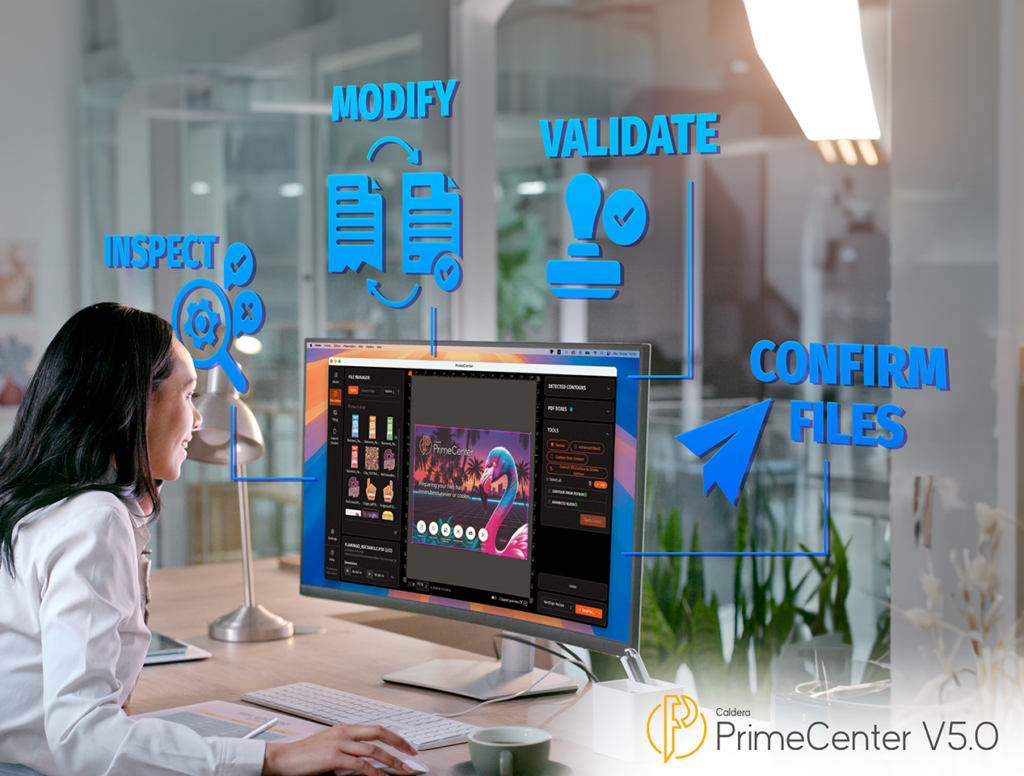
Make every PDF more production-ready
PDF preparation may happen before the printer starts, but its impact continues all the way through production and until you finish.
A missing bleed can affect finishing. A bad cut contour can stop a cutting workflow. An incorrect spot color can interfere with special production requirements. A basic preflight issue can become a costly reprint if it is discovered too late. The earlier these problems are addressed, the easier they are to manage.
With PrimeCenter, print businesses can bring PDF checking, correction, bleed generation, cut-contour preparation, spot-color management, and other prepress tasks into a more structured workflow.
Instead of treating every PDF as a new problem to solve, you can build a process that knows what to look for.
Reduce manual checks, stay ahead of surprises, and get to production with ease
The future of prepress is not about eliminating human expertise. It is about removing unnecessary repetition from it. Automated PDF preparation allows print professionals to establish clear rules for incoming artwork and apply them consistently. PrimeCenter takes that idea further by combining preflight and file-fixing capabilities with production preparation and automation.
The result is a workflow where files can arrive in many different forms but leave in a much more consistent state, ready for the next stage of the production process. Check earlier. Fix automatically. Prepare once. Print with confidence.

Frequently asked questions
PDF prepress is the process of checking and preparing a PDF before printing or cutting. It can include checking dimensions, colors, fonts, bleed, resolution, spot colors, and cut contours.
No. A PDF can look correct on screen while still having issues that affect printing or cutting, such as missing bleed, incorrect colors, or damaged cut contours.
A preflight check can verify dimensions, color spaces, fonts, resolution, bleed, spot colors, and cut contours before the file reaches production.
Yes. Tools such as Caldera PrimeCenter can apply predefined checks and corrections automatically through recipe-based workflows.
You can create a workflow that imports files, checks and fixes common issues, adds bleed, prepares cut contours, manages colors, and generates production-ready output.
Missing bleed can be detected by checking whether the artwork extends far enough beyond the final cutting boundary. This is especially important for stickers, labels, signage, and decals.
You can create a recipe that applies the same checks and corrections to every incoming file. This makes high-volume PDF processing faster and more consistent.
Related articles