Give Your Epson DTF Printer the Workflow It Deserves
October 26, 2026
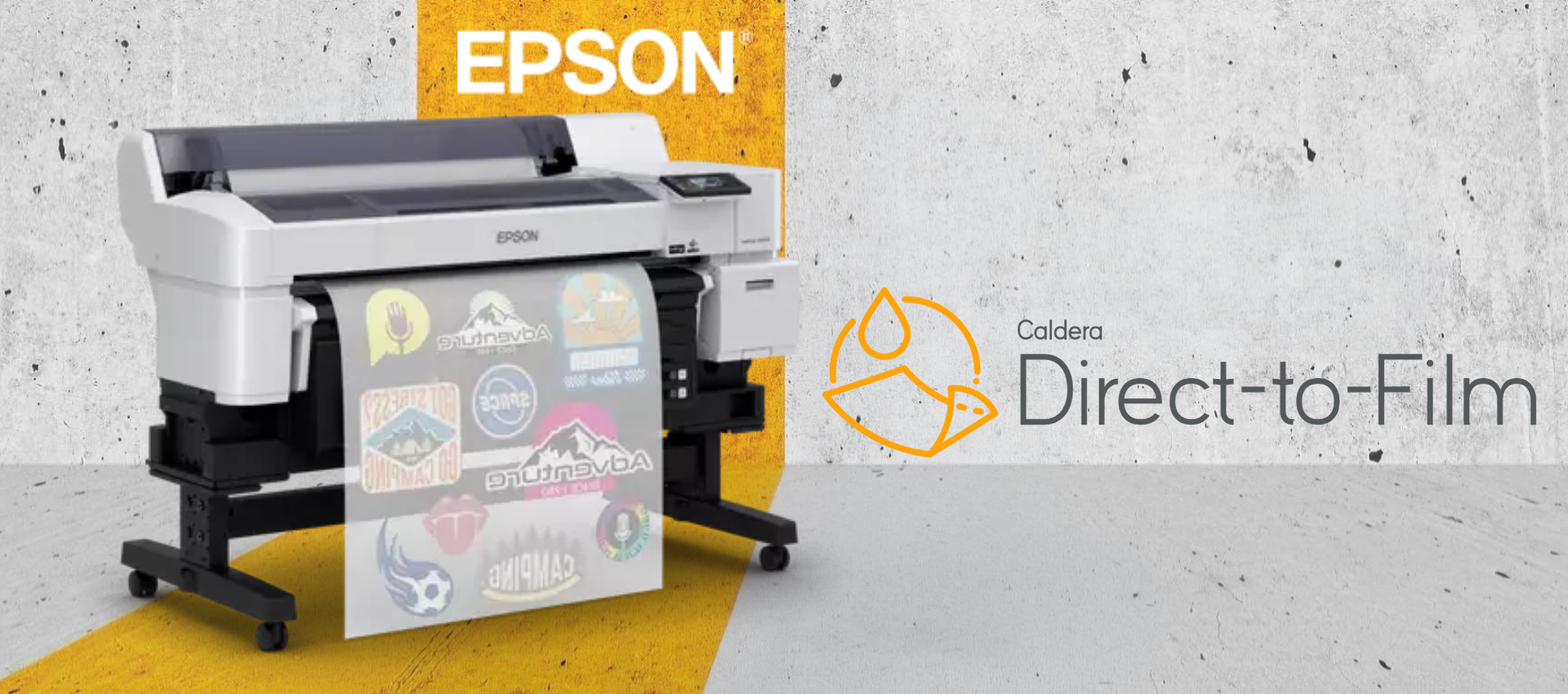
You already know how important a printer investment is. That’s why you try to choose wisely. But you also have to think about how your team will prepare the jobs using that printer. Caldera Direct-to-Film supports Epson SureColor G6000 to offer you more compatibility. Operators can combine the printer’s capacities with Caldera DTF.
You can start by thinking about the experience you want for your operators. Can they move easily from an incoming design to a reviewed layout? Can they find the settings they need without searching through unnecessary tools? Can they start a familiar job without rebuilding its configuration?
These are important questions that you can start with when you want a more established production process or if you’re just starting with Caldera Direct-to-Film. So your objective here is to give your team a clearer way to go from the customer design to the file that will be ready to print.
In this article, we explain the advantages of using Epson G6000 with Caldera Direct-to-Film and how to use its full potential.
A dedicated software option for your Epson SureColor G6000
The Epson SureColor SC-G6000 is a roll-to-roll direct-to-film printer developed for textile transfer production. It combines Epson’s Precision Core MicroTFP printhead with white ink circulation and automated wiping features. The printer is built to improve print quality and reduce maintenance demands. Its features include:
- Precision Core MicroTFP technology to reproduce detailed images
- White ink circulation to help treat sedimentation and clogging
- Automated wiping to limit manual maintenance
- Epson Edge Print Pro, included with the configuration referenced here
Caldera Direct-to-Film acts as a separate software solution that you can use with your Epson SC-G6000. It puts the printer’s features into real practice and uses their full potential. Now, to decide on whether you will choose the software for your printer, you will have to know which working environment is appropriate for your team, the designs you receive, and they way you usually organize production.
Make design preparation easier to go through
If you see that the next action is always obvious, then you have a well-organized workspace. But if you see the opposite, then you’ve got some real work to do. Caldera Direct-to-Film is a simplified RIP software that offers a drag and drop interface with incoming files on the left, a central studio for the composition and preparation modules on the right. Operators can drag and drop the files into the studio and utilize the needed tools to configure them within the same interface.
Its artwork and layout controls include:
- Drag-and-drop placement of imported designs
- Numerical adjustments for image dimensions and position
- Media sizing controls for the composition being prepared
- Image mirroring within the application
To evaluate the software, it’s best to try it with your own files rather than relying only on a demonstration design. You can select a customer logo or an illustration with transparency, or a graphic containing text.
When evaluating the software, try it with your own files rather than relying only on a demonstration design. Operators can load each file, set its intended dimensions and check its orientation. In this way, you will use a practical way to judge whether the interface feels natural for your team, and where additional training might be useful.
White Underbase Generation Becomes Simple
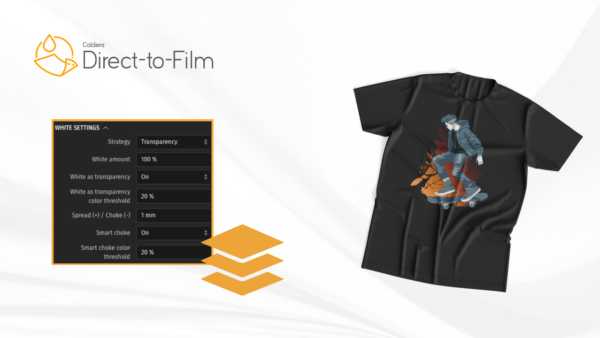
Preparing white ink is an essential part of the whole DTF process. Caldera Direct-to-Film automatically generates the white layer which gives operators the ability to start without building the underbase manually. This does not only introduce you to automation, but it keeps controls available when the file needs a different treatment. The white underbase tools in Caldera Direct-to-Film offer generation strategies based on colour and transparency, alongside settings for the amount of white ink you apply.
These controls allow operators to:
- Choose a generation strategy appropriate to the artwork
- Adjust white ink coverage instead of relying on a single fixed amount
- Account for transparency when building the undercoat
- Evaluate a printed sample before refining the settings
To have a proper demonstration, bring a design that represents the kind of jobs you’re selling. Include a straightforward image and a more complex one with transparent areas. Then, you can use the demo version to get familiar with our white underbase tool and see how it really works. This process helps your operators to understand how to manage it and control it. In this way, you will be able to evaluate it in cotext.
Give branded designs the colour attention it needs
You always have to give more than a visual check to a customer’s logo on your computer screen. Caldera Direct-to-Film includes automatic spot color recognition and conversion, using the printer’s color profile and film or media settings to define the closest reproduction. Its spot color tools also provide operator control when further adjustment is needed.
For jobs containing named brand colours, this brings several tasks into the RIP environment:
- Recognise spot colour references in the incoming artwork
- Convert those references according to the selected print conditions
- Review and refine their reproduction for the job
- Reduce repeated manual interpretation of the same colour references
But you should keep in mind that color reproduction is also affected by the film quality and heat press variations. So, you will need to adjust that accordingly before using the spot color module. So, this makes color management a long checklist rather than checking out one element like spot colors reproduction.
Review film usage before printing
Caldera Direct-to-Film includes a media coverage indicator that helps operators see unused space in the layout. Combined with image sizing and positioning tools, it provides a way to examine the arrangement before putting the job on film. The studio also allows operators to preview the job and insert multiple files from the file manager. This makes it possible to preview many designs at once instead of doing it separately.
Before submitting a layout, a useful operator checklist is:
- Is every design at the requested size?
- Are the quantities correct?
- Has text orientation been checked?
- Is the spacing suitable for your downstream handling?
- Does the composition include only the artwork intended for this job?
So the preview in the studio will act as a place where you make more decisions. The operators use it to confirm that everything is ready for production and whether there is a need for adjustment.
Start familiar jobs from reusable configurations
It’s possible to avoid doing a fresh setup from scratch every time you have an order. Caldera Direct-to-Film offers downloadable, ready-to-use presets that can be imported into the application, providing an alternative to configure every job again and again.
This matters especially to teams who manage many orders per day and use different workstations.
Caldera presets support activities such as:
- Introducing an existing configuration on another workstation
- Moving presets between systems with less repeated setup
- Keeping associated spot colour mappings with their presets
- Maintaining a more organised configuration library
Consider establishing a naming convention before your preset library grows. Names should tell an operator when to use a configuration, rather than relying on labels such as “new settings” or “final version.” In CalderaDock, you can download presets that match your exact Epson configuration and consumables. You can then import them into Caldera Direct-to-Film without doing a whole configuration from scratch.
Work on the operating system that suits your team
Caldera Direct-to-Film runs on macOs, Windows and Linux. This gives your operators more flexibility of they prefer one system over another and when selecting a workstation. It also supports multiple file formats in the three operating systems we mentioned above.
The interface is built to include resources and internal guides that you can use to start printing and get acquainted with the software’s capabilities.
Before installation, confirm:
- The supported version of your operating system.
- The hardware requirements for the application.
- Compatibility with your exact printer configuration.
- The assistance available for installation and onboarding.
What could a typical job preparation sequence look like?
To evaluate Caldera Direct-to-Film in a realistic setting, you can have a demonstration based on a specific order. For instance, you can use a customer’s logo and an illustaration that are intended for different garment size.
A useful evaluation sequence would be:
- Load the supplied artwork and check that it appears as expected
- Set the required dimensions for each design
- Arrange the graphics and review quantities and orientation
- Inspect the white underbase and discuss any necessary adjustments
- Review named colours against the customer’s requirements
- Select an appropriate configuration for the intended printing conditions
- Produce and assess a sample before approving the full job
You can use the valuation checklist to explore how Caldera Direct-to-Film handles your particular design and production requirements.
Give your Epson printer a workflow built around your team
If you decide to purchase a RIP software for DTF or change the one you have, you will have to think about the jobs you produce and the team that prepare them. Look for an environment that makes important needs and settings accessible, gives operators simplified parameters, and allows them to check the details before they start printing.
Caldera Direct-to-Film combines design management, white underbase generation, and spot colour management into a dedicated DTF interface compatible with the Epson SureColor G6000.

Frequently asked questions
Yes. Caldera identifies the Epson SureColor G6000 among the printers supported by its Direct-to-Film solution. Confirm the requirements for your exact installation before purchasing.
Caldera Direct-to-Film is a separate, compatible option; it is not required simply to operate the printer.
Yes. Caldera Direct-to-Film is available for macOS, as well as Windows and Linux. Check current system requirements before installing it on your workstation.
Yes. Caldera Direct-to-Film automates white layer generation, with controls available to adapt the undercoat to the artwork and printing requirements.
Yes. The software recognises and converts spot colours using the selected printer profile and media settings. Final reproduction should still be assessed under your actual production conditions.
Related articles